
JavaScript for Marketers: Supercharge Your GTM
If you’ve ever felt limited by what Google Tag Manager can track out of the box, you’re not alone. While GTM is powerful, its true potential unlocks when paired with a little JavaScript. Whether you’re trying to track clicks on buttons with no IDs, capture user-selected form options, or trigger events in a single-page app—JavaScript gives you the flexibility to make it happen!
We’ll walk through some real-world scenarios where knowing just a bit of code can help you gather cleaner data, build smarter campaigns, and level up your marketing skills.
TLDR
Google Tag Manager (GTM) is a free tool that allows you to manage and deploy tags on your website without needing a developer to implement for you. There are many use cases but these are 6 examples of how you can use JavaScript in your GTM strategy.
- Track buttons without unique IDs
- Custom form field tracking
- GA4 e commerce tracking
- Pageviews for SPAs
- Extract page path to use for content group in GA4
- Extracting URL Parameters for Campaign Attribution
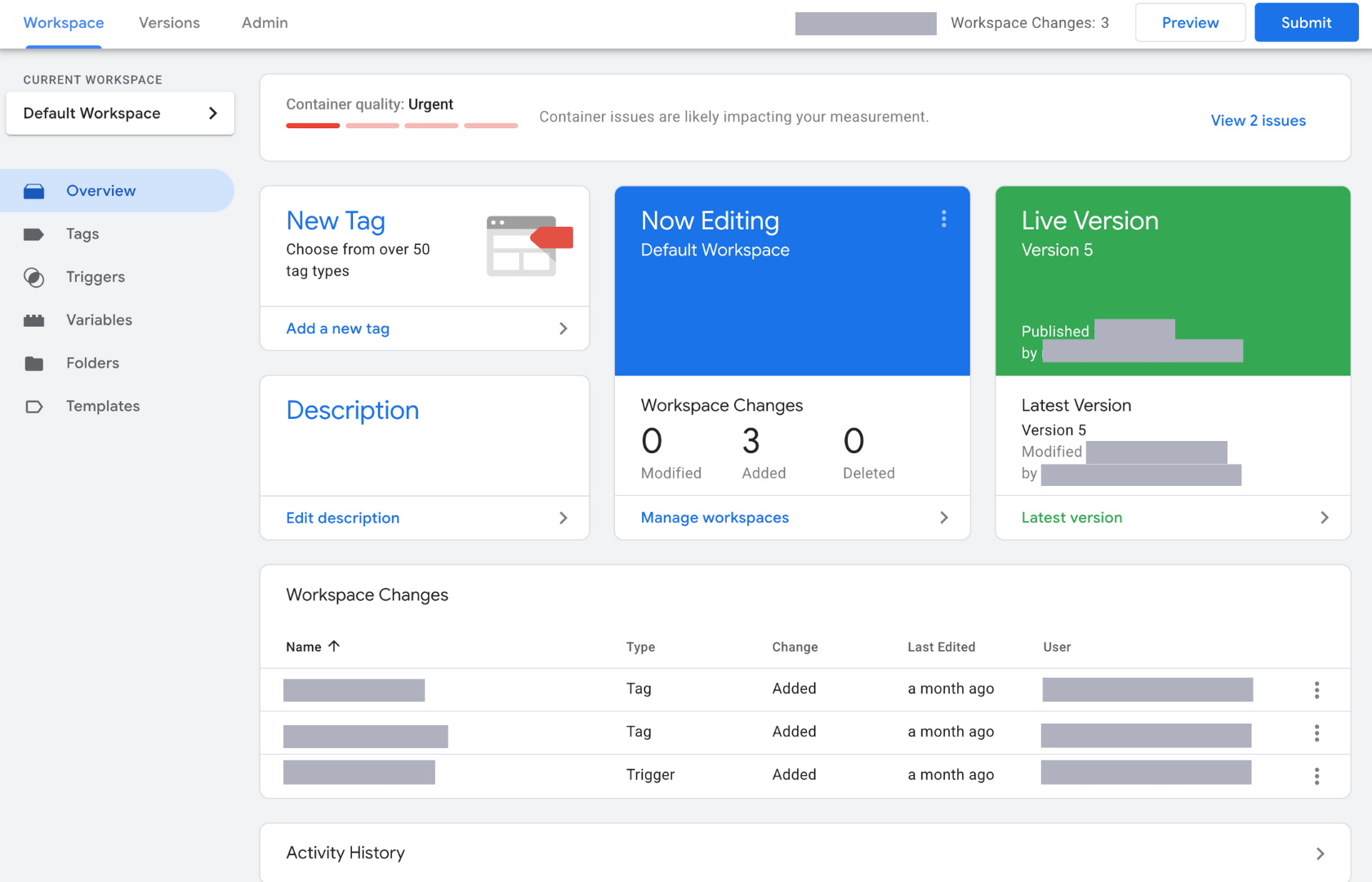
What is Google Tag Manager
Google Tag Manager (GTM) is a free tool from Google that helps you manage and deploy marketing and analytics tags on your website without having to manually update your site’s code every time. A “tag” can be anything from a Google Analytics event to a Facebook Pixel to a custom tracking script that fires when someone clicks a button or submits a form.
With GTM, you can create triggers (like a click, scroll, or pageview), and connect them to tags that send data to tools like Google Analytics 4 (GA4), Meta Ads, LinkedIn Ads, and more. It all happens inside the GTM interface where you can test, preview, and publish your changes—no code push needed.
If you’ve never used Google Tag Manager before, go to tagmanager.google.com to set up an account. At this point, you might need a developer to help you implement the code that needs to be added to your website before you can start using the tool.
How Marketers Can Benefit from GTM
For marketers, GTM is a total game changer. Google Tag Manager (GTM) lets you track events on your website like button clicks, form submissions, and more—without waiting on a developer.
Why go around a developer? Maybe your team is small, or the dev cycle takes weeks. If you just need to track a contact form or a button click, GTM lets you do it yourself. Whether you’re on a tight deadline or just want more control, GTM gives marketers the power to move fast.
Common GTM Pitfalls and Best Practices
#1 Polluting the Global Scope
What is scope?
In programming, the term “scope” refers to variables and expressions that can be accessed within a particular part of the code. If a variable or expression sits outside of the current scope, it can’t be referenced/used.
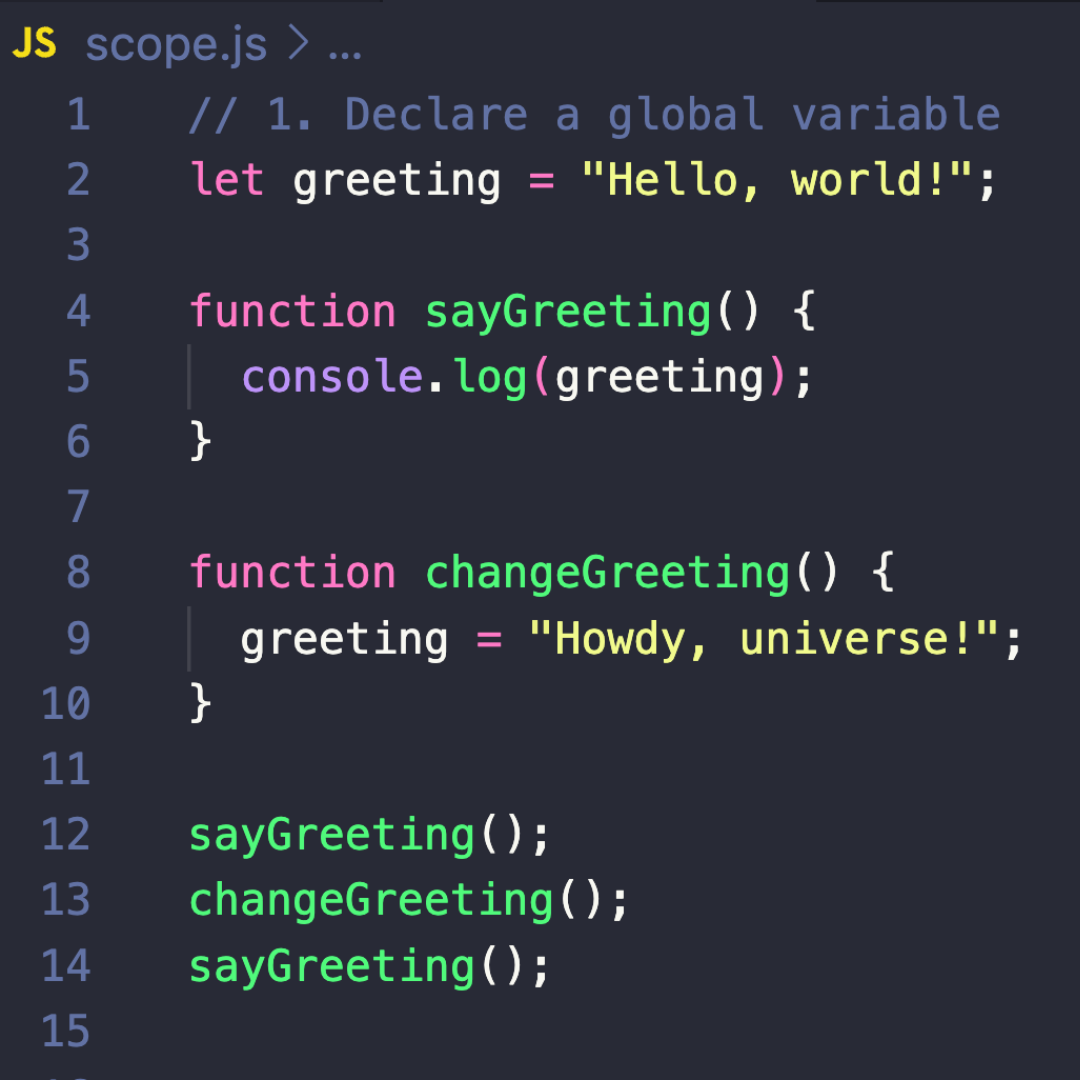
In the above example, “greeting” lives in the global scope. The greeting variable is called in the “sayGreeting” function and can be used even though it doesn’t sit within the function itself. The “changeGreeting” function changes the global variable.
If you were to run this code, it would return the following.
Hello, world!
Howdy, universe!
Within the global scope of a web browser, variables become properties of the global object, which is represented by the window object. In web browsers, the window object is the main container for all global JavaScript variables and functions. Standard built-in objects like Object, Function, and Array also exist here. Since all scripts can access and change the window object, it’s a central point where code can interact and potentially conflict.
Global scope pollution in Google Tag Manager
GTM works by injecting code, which can include HTML and JavaScript, into a web page during its runtime. The injected code works within the global scope of the page which means it has the potential to interact and modify the global environment. Additionally, GTM relies on the dataLayer object, which sits within the global scope, as a way to manage and exchange data.
When you put too many variables or functions into the global scope, you risk a handful of common problems.
- Name Collisions
- Issues Debugging
- Tight Coupling
- Leaks due to undeclared variables
How to Avoid Scope Pollution
- Use Google Tag Manager’s built-in variables wherever possible.
- Use “let” and “const” whenever possible.
- Wrap code in modules (ESM import/export or IIFEs)
- Pass data into functions via parameters instead of globals.
- Keep as much as possible inside function or block scope.
#2 Debugging and Testing
Using JavaScript can be a powerful tool but it also introduces risk of errors that can impact data accuracy and website functionality. That’s why understanding how to debug and test your solutions is important.

Chrome DevTools
Chrome DevTools is a free set of web development tools that’s built right into the Google Chrome browser. To access the developer tools
- Open your website
- CMD + Option + I for macOS and CTRL + Shift + J on Windows or Linux. Right clicking and selecting “Inspect” also works just fine
We won’t deep dive into all the features of Chrome DevTools but this is definitely worth playing around in to help you see what’s happening under the hood of your website.
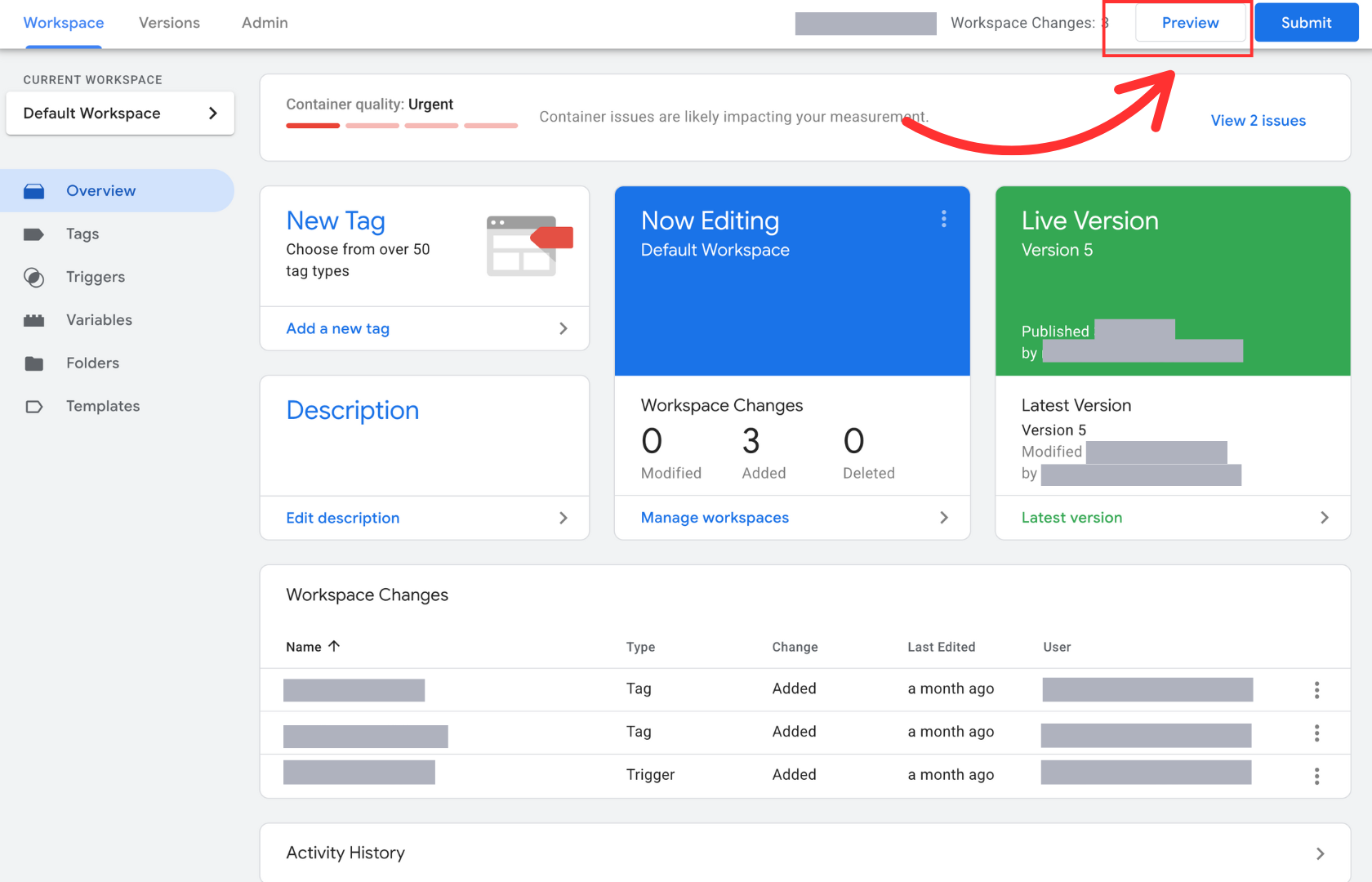
GTM Preview Mode
Google Tag Manager’s Preview and Debug mode is your tool to make sure your tags and triggers are working as expected. This preview environment allows you to test configurations without affecting actual site visitors and troubleshoot custom JavaScript.
- Click Preview
- Enter the website or landing page you want to test
- Click Connect
Once you’ve connected to the website or landing page you want to test, you’ll see an interface that usually says “Connected” to let you know everything’s working. There’s a lot to unpack within the Preview mode which is beyond the scope of this blog.
Another tool you should know about is the Tag Assistant Chrome Extension. This is another useful debugging tool that includes quick information about tags on your website.
Deep Dive into Data Layer Inspection
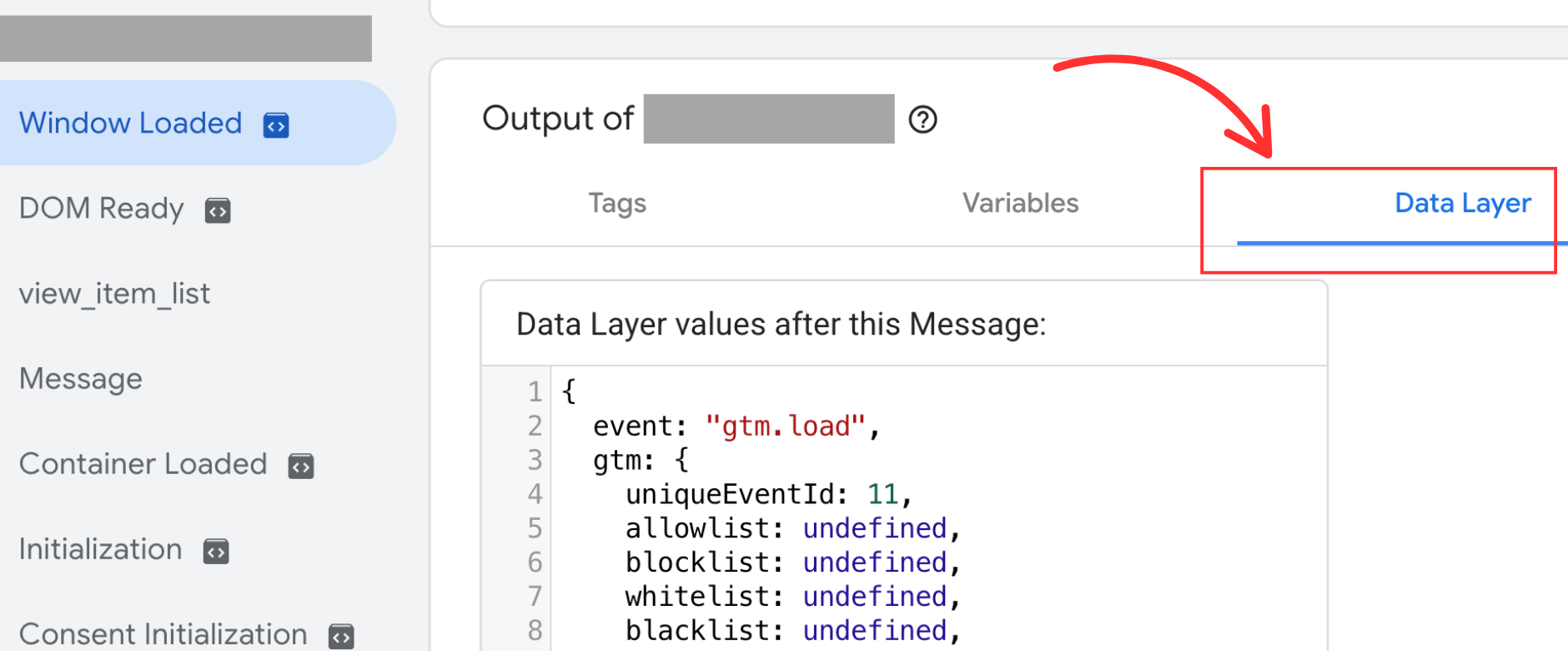
The Data Layer is used to pass information between your website and your GTM container. The Data Layer tab shows the code that was pushed to the Data Layer for the event selected in the Event Timeline on the left side.
- Select an event from the left side in the Event Timeline
- Navigate to the Data Layer tab
The code in the Data Layer tab displays the dataLayer object at the moment the selected event occurred. This is useful for verifying that your custom JavaScript is correctly setting or modifying dataLayer variables and the values are what you expect them to be. Additionally, this is how you can track how data is being passed within GTM and ensure your custom JavaScript is providing accurate data.
#3 Keep Your GTM Container Organized
While GTM is great for creating tags, things can get messy fast. That’s why I wanted to give a few suggestions about how to keep your container organized.
- Use folders to organize your Tags and Triggers
- Remove unused/duplicate tags
- Use built-in tags when possible
- Schedule time to audit your container
Using JavaScript to Enhance GTM Capabilities
Google Tag Manager comes with a bunch of built-in variables and triggers that work right out of the box. However, not every use case is that simple. Sometimes, you’ll need something custom that reacts to a specific action on your site—like creating a tag that tracks a button with no ID or capturing dynamic content. That’s where a little JavaScript know-how (and some GTM experience) makes all the difference.
Here’s 6 Ways to enhance your Google Tag Manager strategy.
1. Track buttons without unique IDs
This is good when a site has buttons with generic class names like “default” or no identifiers at all. Use document.querySelectorAll() with your own classes to identify the right element and attach an event trigger.
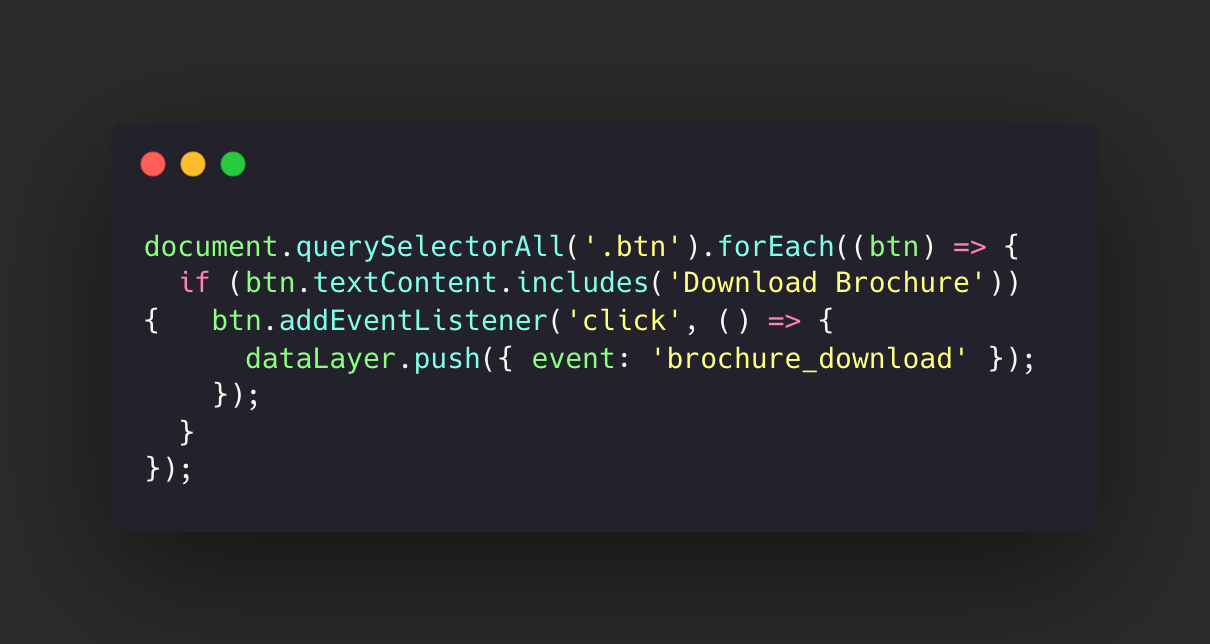
2. Custom form field tracking
Use this or something similar if you want to know what service, product, or option a user selects from a dropdown before submitting a form. This grabs the value on the selection and stores it in a dataLayer event/variable.
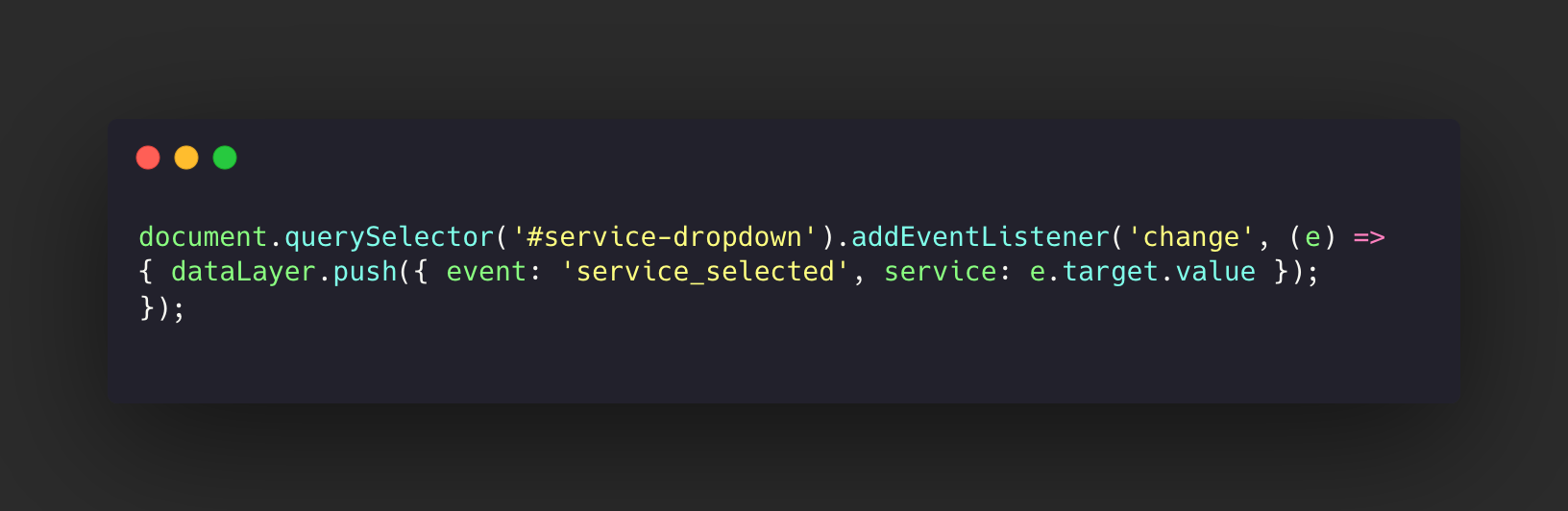
3. Remapping Data Schema
You can take this idea and adjust it to fit your needs. This is helpful for when you want to reconfigure the schema into something that Facebook or GA4 understands. For example, if you have a list in Facebook that you want to remarket to, rather than using {{Ecommerce items}} in GTM, you can use this snippet to help reformat the data so that it speaks Facebook not Google Analytics!
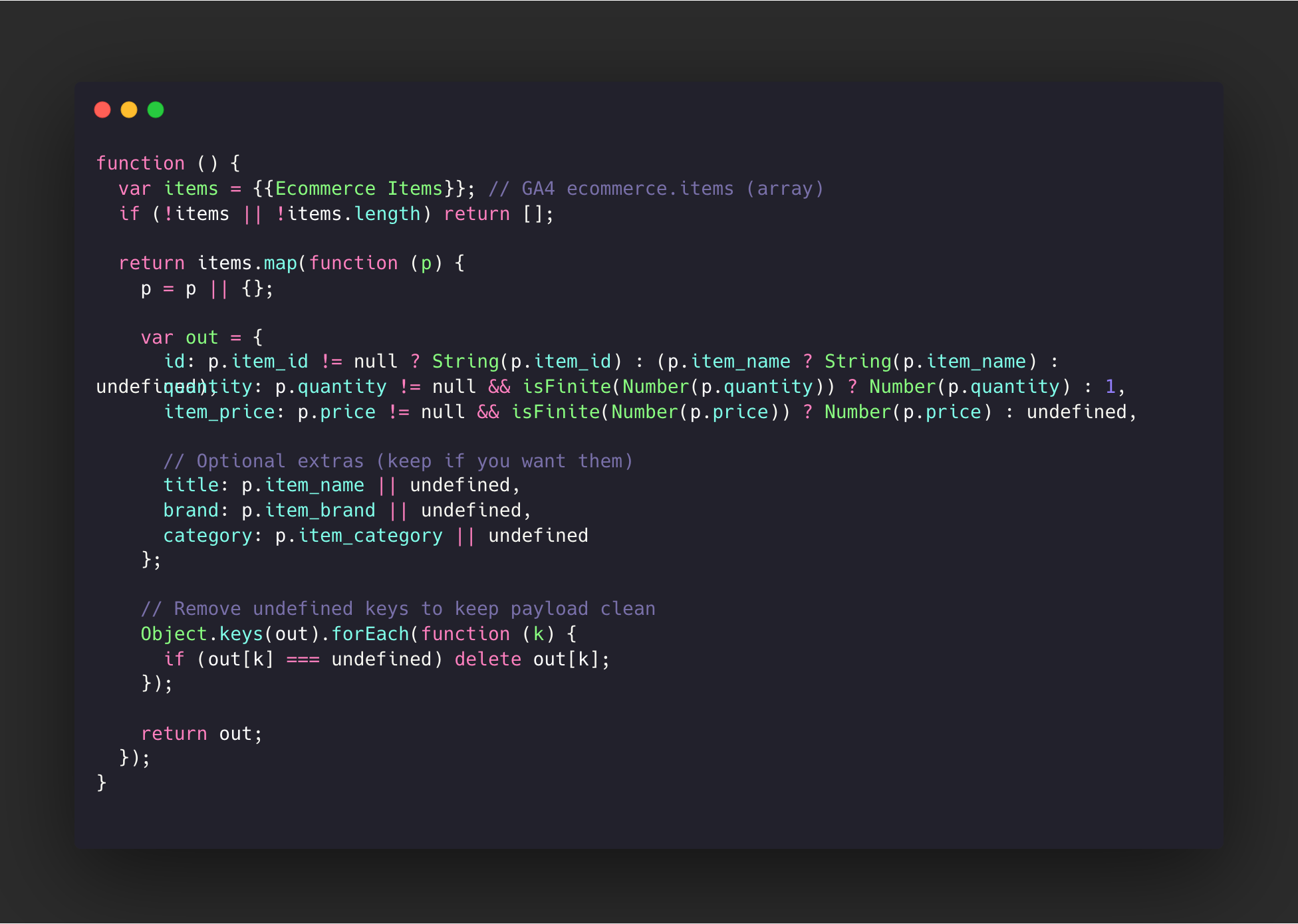
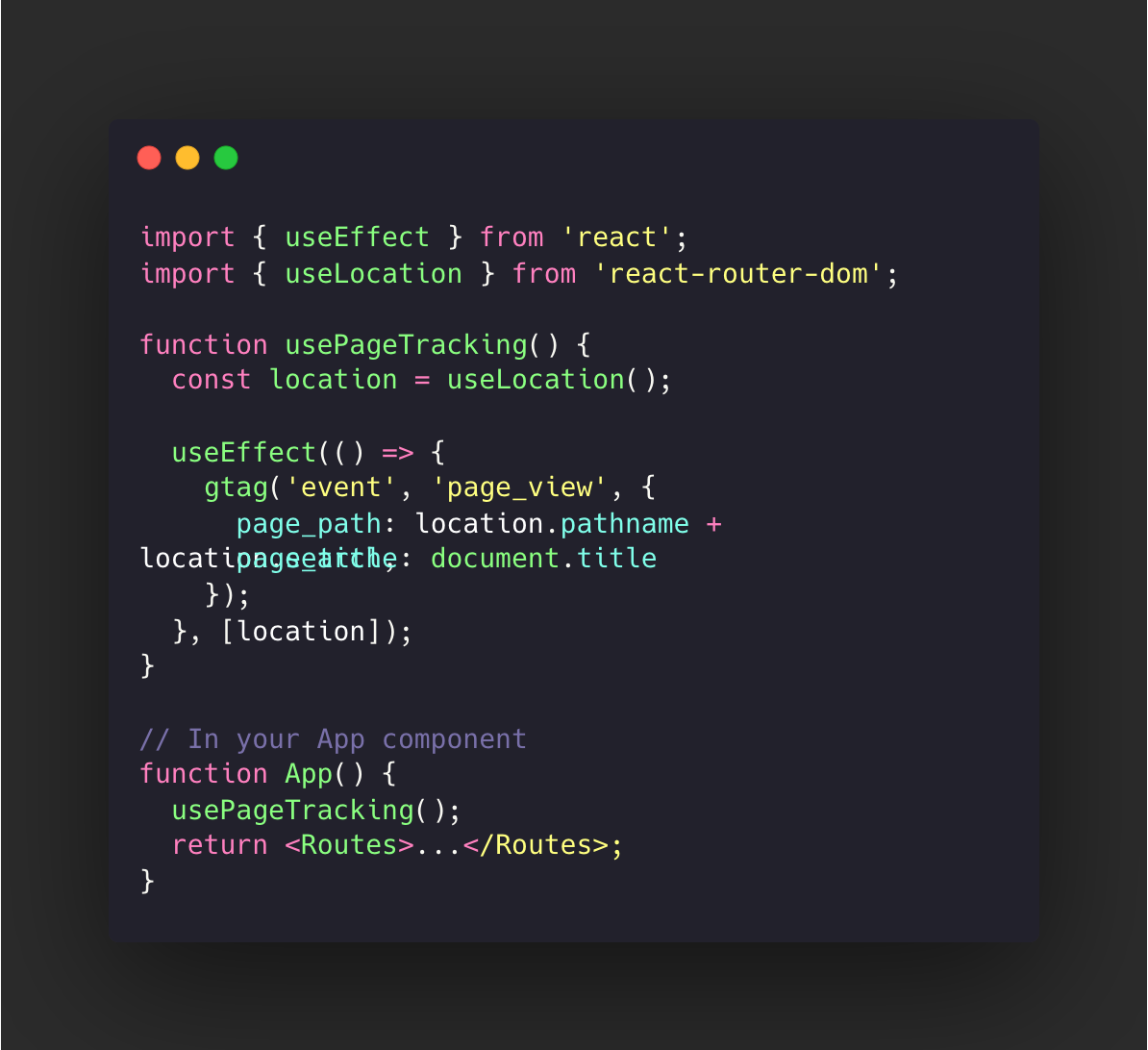
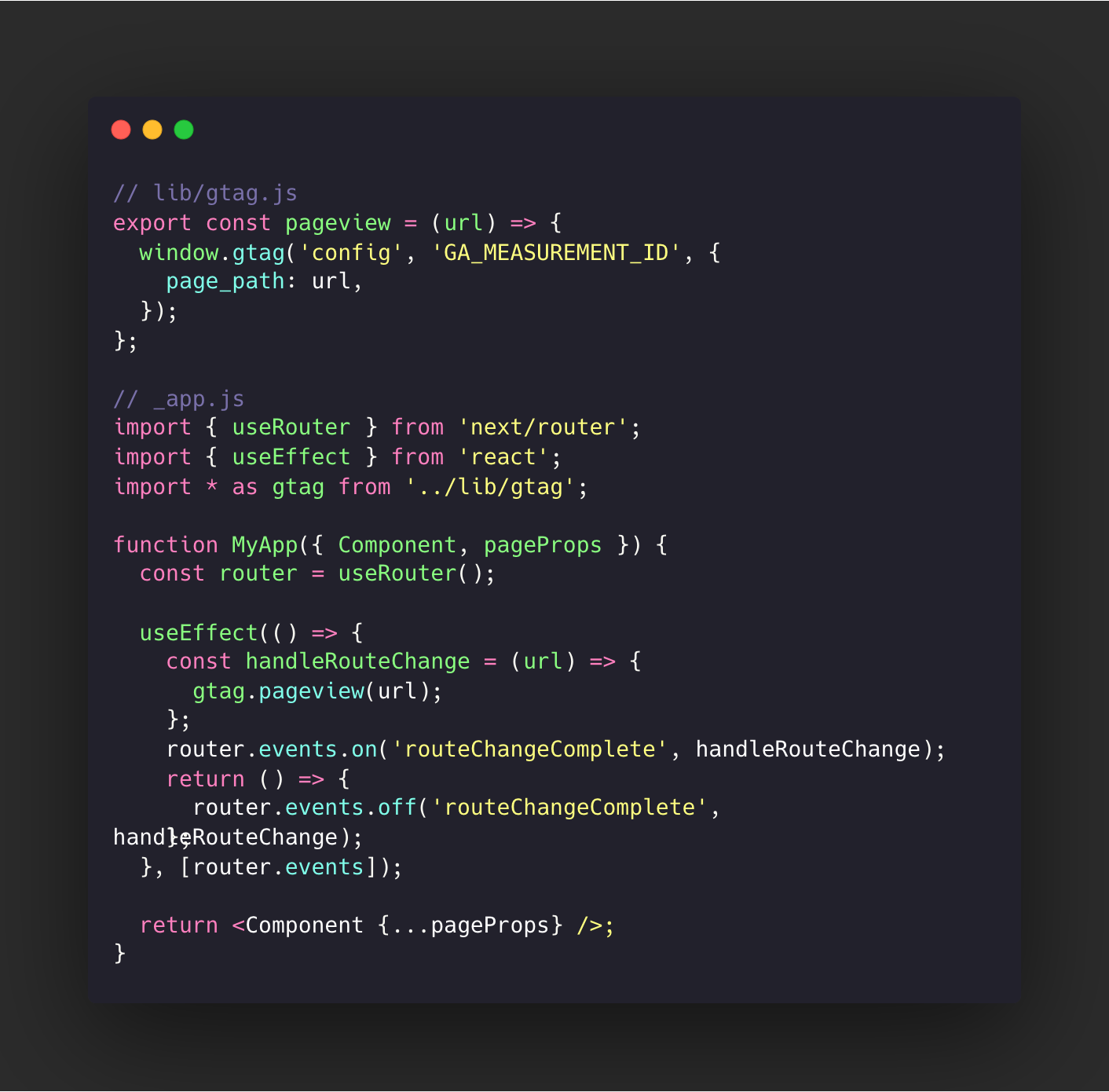
4. Pageviews for SPAs
This one is a little tricky because if you’re not familiar with Single Page Applications (SPA) then I recommend understanding how they work before figuring out how to update pageviews. If you don’t have the developer chops to do this on your own I recommend getting help from a developer.
If you want to try and solve the problem on your own, then I recommend toggling on the “Page changes based on browser history events” box within the GA4 Enhanced measurement section of the admin.
For this issue, I’ve pulled some examples from Claude, but I think it’s worth thinking through how you would implement this before just copy and pasting. My personal preference is to use Claude for more technical coding tasks.
Google Analytics 4 (GA4)
Manual pageview tracking:
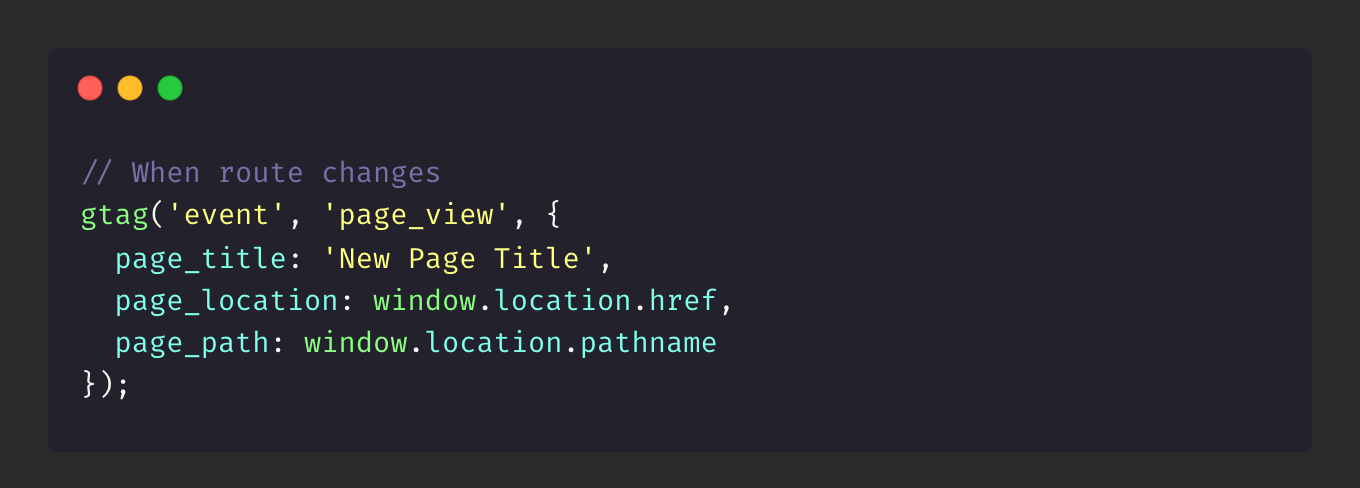
With React Router:
Framework-Specific Solutions
Next.js with GA4:
Best Practices
- Track on route change, not component mount - Use router events to avoid duplicate tracking
- Update document.title - Many analytics tools pull from this automatically
- Include search params - Use location.pathname + location.search for full context
- Test in network tab - Verify events fire correctly by checking network requests
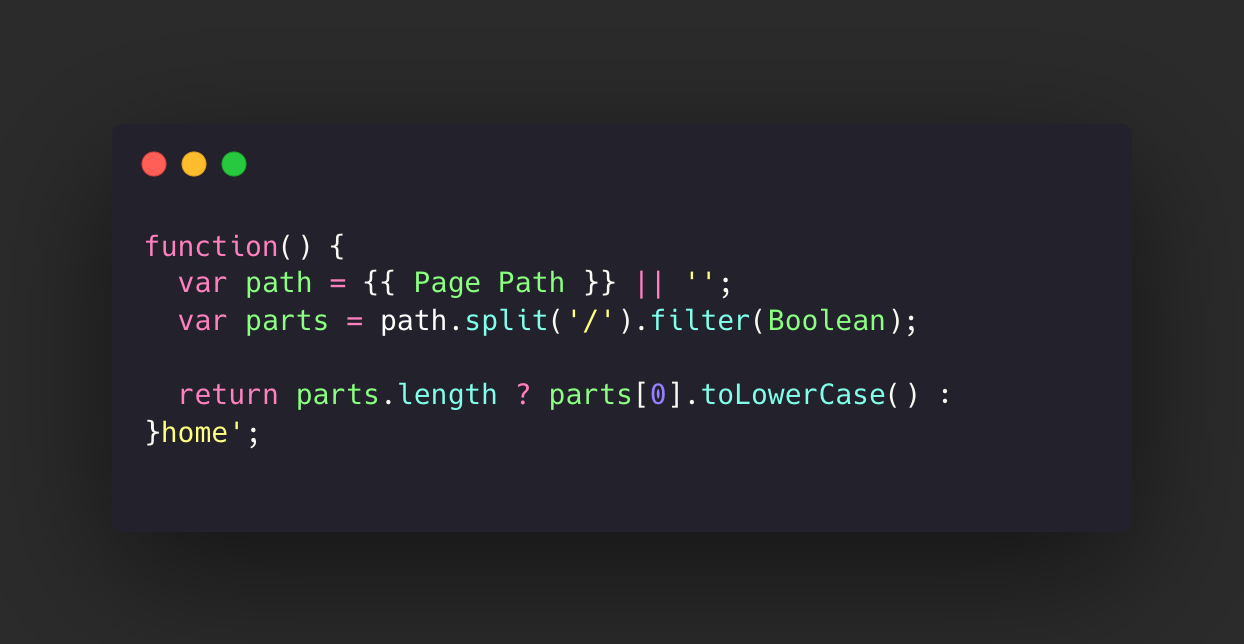
5. Extract page path to use for content group in GA4
If you want to understand which categories on your website are being viewed most this could help with that. For example, if you have tutorials or products then you could use content groups to aggregate your data based on these categories to showcase how users interact with content, at a high level, on your website. Great for high level data analysis!
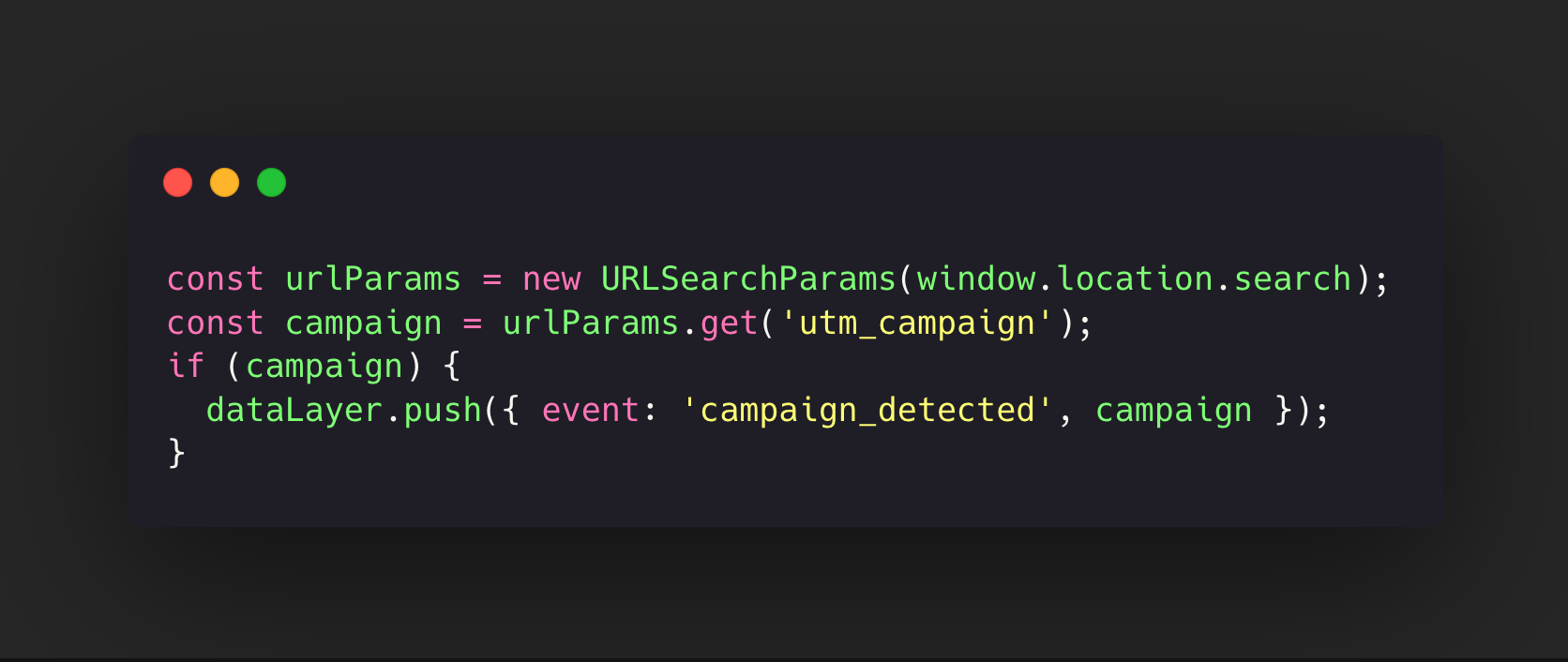
6. Extracting URL Parameters for Campaign Attribution
This is one way to grab custom UTM values or affiliate IDs from the URL. This pushes to the dataLayer.
Conclusion
Hopefully this gives you some ideas of how to use JavaScript within your marketing efforts. This took me a while to figure out so don’t be discouraged if things don’t make sense right away, especially if you don’t have a coding background. Go slow, take the time that you need to learn these concepts, and try doing small tests. One idea could be to make your own sandbox website where you can try new concepts without worrying about breaking somehting on your main site.